



Remote control software has evolved from a narrow IT tool to an everyday necessity. AnyDesk differentiates itself in this crowded market by providing a lightweight, encrypted connection that bridges the gap between your home computer and an office workstation, or smartphone and remote desktop. It’s not just about solving technical problems anymore. It’s about maintaining access to important files and networks even when you’re away.
The core mechanism is deceptively simple. Requires a stable Internet connection and a unique identification code. that’s it. This token allows a technician, administrator, or even a helpful friend to set up a session for you. Once the connection is established, the remote control screen will appear in a new window. Get perfect visibility. You can move the mouse, type on the keyboard, browse the file system and adjust settings just as if you were sitting in front of the computer. It has built-in file transfer capabilities and can even print documents to a printer attached to a local computer, regardless of where the remote device is located.
But convenience doesn’t mean sacrificing safety. This is what separates AnyDesk remote desktop software from sketchy alternatives. This platform uses end-to-end encryption using the TLS 1.2 protocol. This is more than just a protective layer. It is an integral part of architecture. When you connect, the keys are exchanged asymmetric via RSA 2048. Passwords are hashed. Two-factor authentication (2FA) can add another barrier to unauthorized access. If you’re a professional, you can restrict access by whitelisting certain devices to prevent remote users from copying, pasting, or transferring files unless they have specific permission.
Download, install and configure AnyDesk
Getting started is easy, but the source of your downloads is very important. Always get your software from AnyDesk’s official website or from a trusted partner like Futura. Avoid using third-party torrent sites or modified versions. Pirated versions often come bundled with malware, defeating the purpose of a secure remote access tool.
The installation process is designed to be smooth. You can download executables or package files on Windows, macOS or Linux. Double click on it. Follow the instructions. It is very fast. There are no complicated wizards or hidden dependencies. You can install the application on mobile devices by visiting the Google Play Store or the App Store. Even if you are not technical, the user interface guides you through the initial installation with little effort.
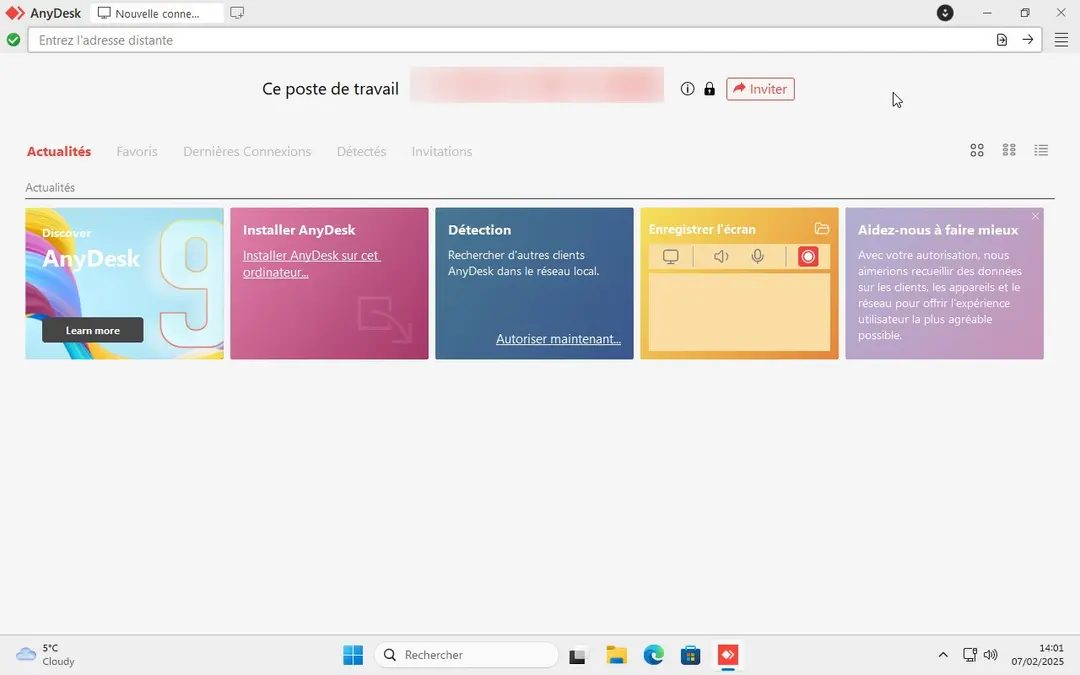
Once installed, the software creates a unique ID for your device. This ID is your digital address. If you want to connect to another person, you must enter their ID in the main interface. You have to accept their request on the screen to let them in. This is a handshake. It’s that simple.
Cross platform compatibility and real use cases
One of AnyDesk’s strongest claims is that it can ignore operating system boundaries. It doesn’t matter if you’re using a Windows PC, a macOS laptop, a Linux server, an iOS tablet, or an Android smartphone. The experience is consistent. You can troubleshoot Windows computers from your Linux terminal. View Mac files from your Android device. This transversality is critical in hybrid work environments where hardware choices vary greatly by employee.
For remote workers, this utility is readily available. You can sit on the couch with your laptop and have full control over your office computer. Access to company documents. Connect to your local network. Get the job done without commuting. For IT support, this means faster resolution times. You don’t have to drive to the customer. There is no need for complex VPN configuration to break under fire. Just one code, one connection and a fix.
However, with flexibility comes responsibility. Administrators must manage access rights carefully. While allowing full remote control is powerful, it also comes with risks. Limiting clipboard sharing and file transfer can reduce the possibility of data leakage. Although software is designed to be secure by default, human error remains its weakest link. Enabling two-factor authentication is more than just a recommendation. This is a basic requirement for serious deployment.
Minimal latency and a stable connection are important when trying to explain complex technical issues to customers in real time. Delay kills trust. AnyDesk’s lightweight architecture helps eliminate this delay. It feels native. It feels instant.
Is complete security possible? No. However, AnyDesk provides the tools that comes close. Encryption is robust. Authentication is layered. The user interface is very intuitive. It’s a free and reliable way for individuals to get help with technical issues. For companies, it is a scalable solution for remote support and hybrid work.
The remote access environment is changing. As more and more people work from anywhere, the need for powerful and secure tools only increases. AnyDesk has a strong position in this field. The logic is the same whether you’re a system administrator managing multiple devices or a freelancer running your home server from a coffee shop. It’s about connection. AnyDesk makes that connection feel invisible.
Why AnyDesk stands out from remote access software
AnyDesk is more than just a remote desktop tool. It is a flexible solution for everything from fast IT support to complete remote work collaboration. You can use it to provide personal assistance between friends or for full-scale device management at an enterprise level. The range of features is extensive. Full remote control, two-way file transfer, remote printing and granular access rights management are available. Clipboard synchronization and built-in chat ensure smooth communication during sessions.
Safety is non-negotiable here. AnyDesk uses end-to-end encryption with modern protocols. This keeps your data safe even on public Wi-Fi and unsecured networks. This is a huge advantage for users who work with sensitive data.
DeskRT and Performance: How to beat your competition
Compared to giants like TeamViewer and Chrome Remote Desktop, AnyDesk wins with its speed and lightweight design. The secret sauce is our patented technology: DeskRT. Optimize screen transfer. This means that you get a smooth and responsive user experience even when the bandwidth is low.
For non-technical users, simplicity is a big selling point. You do not need to create an account or manage a password to start a session. Just enter your personal ID. It takes a few seconds to connect.
Free vs. Professional: Understanding the Tiers
免费版本对于非商业、私人用途来说非常强大。 它不会像其他竞争对手那样剥夺核心功能。 然而,企业还需要更多。 商业版本提供集中设备管理、客户端计算机的无人值守访问、活动日志以及与用户目录的集成。
这些付费版本根据您组织的规模和特定需求进行扩展。 无论您是处理远程工作、技术援助还是大规模客户支持,都有一个层级可以满足您的需求。 这种可扩展性对于 IT 经理来说至关重要。
Multi-device support and IT infrastructure
AnyDesk is not limited to desktop computers. Works reliably also on mobile devices. You can troubleshoot your smartphone from your computer. Or control your workstation with a tablet. This cross-platform flexibility is critical for network administrators and IT support teams.
Integrates seamlessly with your existing IT infrastructure. AnyDesk’s versatile use cases combined with multi-device compatibility and ease of use make it a toolbox for professional maintenance service providers and enterprise IT managers.
It’s not that you no longer need remote access. What matters is which tools get the job done without slowing you down. AnyDesk focuses on speed and ease of use. Is this enough to change the current settings? For many people, the answer is yes. No more installation hassle. The show is there. The rest is just work.
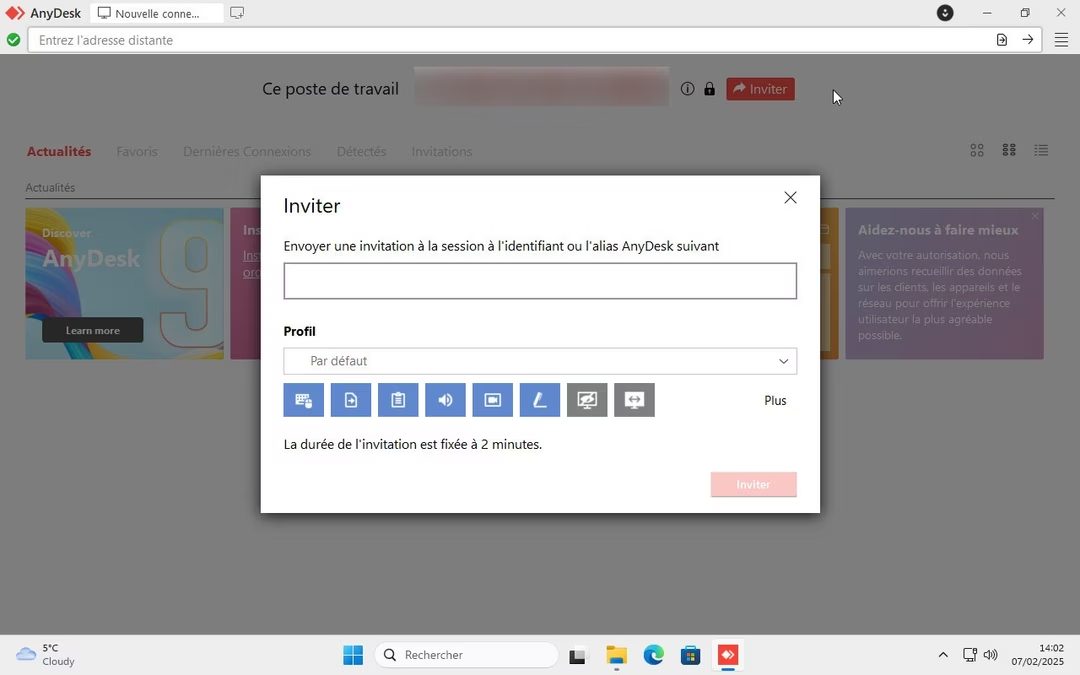
The free version of AnyDesk is very simple. Get the core tools without any major restrictions. Remote control, file transfer and remote printing work as expected. There is no expiration date. Individual sessions are not limited. For individual users, this software is free. It’s designed to be approachable. You can try the basics without worrying about expiration dates.
Companies need different tools. AnyDesk offers a tiered subscription model. The program scales according to the company’s size and frequency of use. The entry point is the Solo license. This is aimed at freelancers and small teams. From there it gets even more complicated. The Standard and Advanced plans handle simultaneous connections and group management. We also offer activity reports. These features are very important when managing dozens of remote devices.
Trying before you buy is part of the process. All professional licenses include a 14-day free trial. This allows IT administrators to test advanced features without financial burden. The price is calculated per user per year. Rates adjust regularly to match market shifts. No special discounts are currently granted to students or educational institutions. A free version is available for non-commercial use. For larger academic projects, our support team is happy to discuss partnerships with educational institutions.
Update and security management
Software rot is real. AnyDesk updates regularly to ensure your security. The software will send you a notification when a new version is available. You should install them. New versions patch vulnerabilities. They also add functional improvements. Skipping updates puts you at risk.
You can manage it with your desktop app. You can set updates to happen automatically. Alternatively, you can check it manually in the settings menu. What if I need an older version? Older hardware or certain legacy enterprise software may break due to new updates. AnyDesk hosts previous versions on its official website. You can download and install it manually. This ensures compatibility in restricted environments.
Cross-platform compatibility
AnyDesk is available almost everywhere. Supports Windows (Windows 7 and higher). Covers macOS, including the latest Apple Silicon chips. GNU/Linux distributions work. Mobile devices are handled with Android and iOS/iPadOS support. This width is important. This enables a smooth transition between different operating systems. Provide assistance to Mac users from your Windows PC. You can help your colleagues on your iPhone or iPad. The user interface adapts to your device. Navigation is also easy with a smartphone or tablet.
With remote tools, accessibility is often an afterthought. AnyDesk tries to get it right. Provides zoom options. Works with screen readers. Automate repetitive tasks and simplify remote access. This supports digital inclusion. This increases the autonomy of disabled users.
Learning and support
The software is intuitive. However, the complexity gradually increases. AnyDesk offers detailed online documentation. There is an interactive guide. There is an explanatory video. The database is updated regularly. It also deals with connection problems. It explains advanced access configuration. Learn more about securing remote endpoints using industry best practices.
For more information, see our webinar and FAQ. Companies looking to upskill their teams can take advantage of online training. Official certification is limited to certified partners. This lowers the barrier to entry and provides depth to professionals.
AnyDesk positions itself as a mature, reliable and scalable solution. Intended for people who help parents solve technology problems. It is intended for network administrators who manage hundreds of endpoints. Installation is easy. Security is solid. Extensive cross-platform interoperability. It is a reference tool for remote control and support.
The market is changing fast. Competitors are constantly announcing new features. AnyDesk also needs to catch up. The pricing structure may change again. The level of free use may become stricter. Let’s see what the balance is between transparency and commercialization. So far, this tool is a strong choice.
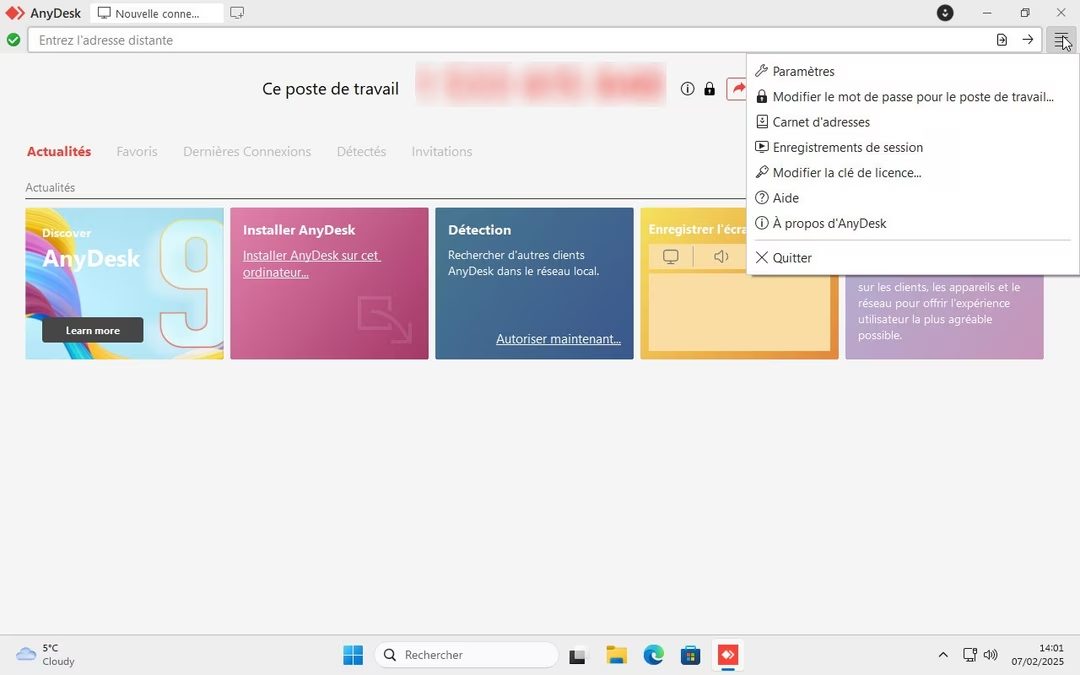
Before you install AnyDesk, you need to know if it will actually work with your existing hardware. The specs aren’t just a list of checkboxes; they determine whether your remote session will lag or stay crisp. This breakdown covers the technical backbone of AnyDesk by AnyDesk Software GmbH. It helps you verify compatibility across platforms and assess the security posture before deploying it for personal use or enterprise support.
Platform compatibility and deployment flexibility
AnyDesk is a cross-platform remote control client. It isn’t limited to just Windows machines. You can run it on Windows, macOS, and GNU/Linux desktops. Mobile support extends to Android and iOS/iPadOS. This multiplatform capability allows connections between PCs, Macs, Linux systems, smartphones, and tablets.
Deployment is flexible. Depending on your IT policies and the operating system, you can choose between a standard installation or portable execution (running without installation). The interface supports multiple languages, including French and English, which matters for international teams.
| Category | Details |
|---|---|
| Publisher | AnyDesk Software GmbH |
| License | Free for personal use. Professional licenses available for commercial use. |
| OS Support | Windows, macOS, GNU/Linux, Android, iOS/iPadOS |
| Core Function | Remote desktop control and IT assistance |
Security architecture and access control
Security is where AnyDesk distinguishes itself from generic VNC tools. The connection relies on encrypted transport using TLS. Key exchange is handled via asymmetric RSA 2048-bit encryption. Passwords are hashed before storage, reducing risk if credentials are exposed.
Access control is granular. Each device gets a unique ID. You can enforce access through passwords, two-factor authentication (2FA), and whitelist management. These layers reduce the attack surface during interventions on sensitive environments.
Unattended access is supported but requires careful configuration. You can set specific permissions and dedicated passwords for non-supervised connections. This balance between reactivity and risk management is critical for IT admins.
Core features for remote assistance
The feature set targets everyday remote work and support scenarios. Key capabilities include:
- Remote desktop control
- Bidirectional file transfer
- Synchronized clipboard
- Remote printing
- In-app chat
These features cover the basics for diagnostics, training, or administering remote stations. The chat function allows for verbal guidance without switching to external communication tools. File transfer is bidirectional, meaning you can move data both ways without complex workarounds.
Network performance and the DeskRT codec
Network conditions often dictate the user experience. AnyDesk addresses this with the DeskRT display codec. This technology optimizes data transmission, ensuring smooth performance even with limited bandwidth. It handles dynamic content well, which is essential for video playback or complex UI interactions.
Connections work directly or via relay servers. This dual approach ensures connectivity through NATs and firewalls. For enterprise environments, this reliability is non-negotiable. The optimization layer significantly mitigates common latency issues, though stability still depends on the underlying network.
Real-world performance and limitations
AnyDesk offers a balanced solution. The interface is clear. Connections are fast. The experience is convincing for IT support, nomadic user assistance, or remote work. However, there are caveats.
The free version is strictly for private use. It is not suitable for commercial needs or managing multiple simultaneous sessions. If you are a freelancer or part of a small business, you will likely need to upgrade to a professional edition. These editions offer centralized management, logging, and admin tools tailored for heterogeneous IT landscapes.
Mobile capabilities vary by platform. iOS and Android have system-level restrictions that may limit certain interactions compared to full desktop control. This is not a flaw in AnyDesk but a constraint of the mobile operating systems themselves.
Unattended access requires rigorous setup. Without proper configuration, you risk either locking yourself out or exposing the machine. The quality of the experience also hinges on network stability. While DeskRT helps, a poor connection will still degrade the session.
For independent consultants, small enterprises, and support services, the professional tier provides a compromise between rapid deployment and compliance requirements. If you want to test the waters, downloading from a trusted source like Futura allows you to evaluate it in real-world scenarios. You can then decide if it fits your workflow for secure remote access and cross-OS collaboration.
The decision ultimately rests on your specific needs. Are you just fixing a colleague’s printer, or are you managing a fleet of devices? The answer will dictate whether the free version suffices or if the professional features are worth the investment.
The Final Stretch: Consolidating and Deploying
The code is written. The tests pass. Now comes the part that usually breaks your spirit: getting it into the hands of actual humans without the house burning down. This is where the rubber meets the road, and where most projects either find their stride or die a quiet, embarrassing death.
You have two main paths here, and choosing the wrong one can cost you more than just a weekend.
Blue-Green vs. Canary: Picking Your Poison
If you are running a high-traffic service, blue-green deployment is your best friend. It sounds complicated, but it’s actually quite simple. You run two identical production environments. Let’s call them Blue and Green.
- Blue is live. Users are hitting it right now.
- Green is the new version. It’s sitting there, quiet and ready.
When you are ready to switch, you flip a router. Traffic instantly goes from Blue to Green. If something explodes? You flip it back. Five minutes. No downtime. No data loss. Just a switch.
It’s safe. It’s clean. It’s expensive because you are paying for double the infrastructure, even if only one is doing work at any given time.
Canary deployments are different. They are slower, more surgical. You roll out the new version to 5% of your users. Then 10%. Then 25%. You watch the metrics. If the error rate spikes, you pull back. If the latency holds steady, you push forward.
“Canary deployments let you catch disasters before they become disasters.”
This is better for saving money. It’s worse for panic. When you see a 1% error rate in the canary group, do you have the discipline to stop? Or do you think, “It’s probably fine, let’s push to 50%”? That’s how you lose users.
The Rollback Plan: Because It Will Break
No matter how good your testing is, it will break. Not often. But when it does, it will be at 2 AM on a Tuesday.
You need a rollback plan that doesn’t involve screaming at your terminal. Automated rollbacks are non-negotiable for anything beyond a hobby project. If the health checks fail, the system should revert itself.
Manual rollbacks are a trap. They rely on human memory. Humans forget. Systems don’t.
Monitoring: The Eyes in the Dark
You don’t know if your deployment worked until someone tells you. And by then, it’s too late. You need real-time monitoring that covers:
- Error rates: Are more people seeing 500s?
- Latency: Is the app getting slower?
- Throughput: Are fewer people reaching the site?
- Saturation: Are the servers choking?
Tools like Prometheus, Grafana, or Datadog are the standard. Set up alerts. Not for minor blips, but for actual shifts. A 2% increase in errors might be noise. A 20% jump? That’s a fire.
The Human Element
Tech is easy. People are hard.
Your developers want features. Your ops team wants stability. Your customers want speed. Your business wants revenue. These goals often conflict