




iTunes has always felt like a necessary evil. You connect your iPhone, and suddenly you are waiting. You are managing libraries you didn’t know you needed. You are navigating menus that feel locked behind Apple’s walled garden. Enter iTools. It isn’t just a different button to press. It is a complete rethink of how a computer talks to an Apple device.
The core promise is simple. No bloat. No forced library syncing. Just raw management of your data. Whether you are on Windows or macOS, iTools positions itself as the agile alternative. It handles the heavy lifting of synchronization without the baggage.
Why Choose iTools for Device Management?
The difference between iTunes and iTools isn’t just aesthetic. It is structural. iTunes treats your iOS device as an extension of the iTunes media library. iTools treats it as a file system you can actually browse.
This distinction matters when you are trying to move specific files around. With iTools, you can navigate the file tree of your iPhone or iPad directly. You aren’t stuck with what Apple decides you can see. You see what is there.
The interface is clean. It is intuitive. It doesn’t try to be a music store. It doesn’t try to be a video rental service. It stays focused on the device itself.
“iTools offers greater flexibility compared to iTunes, which often imposes restrictions within the Apple ecosystem.”
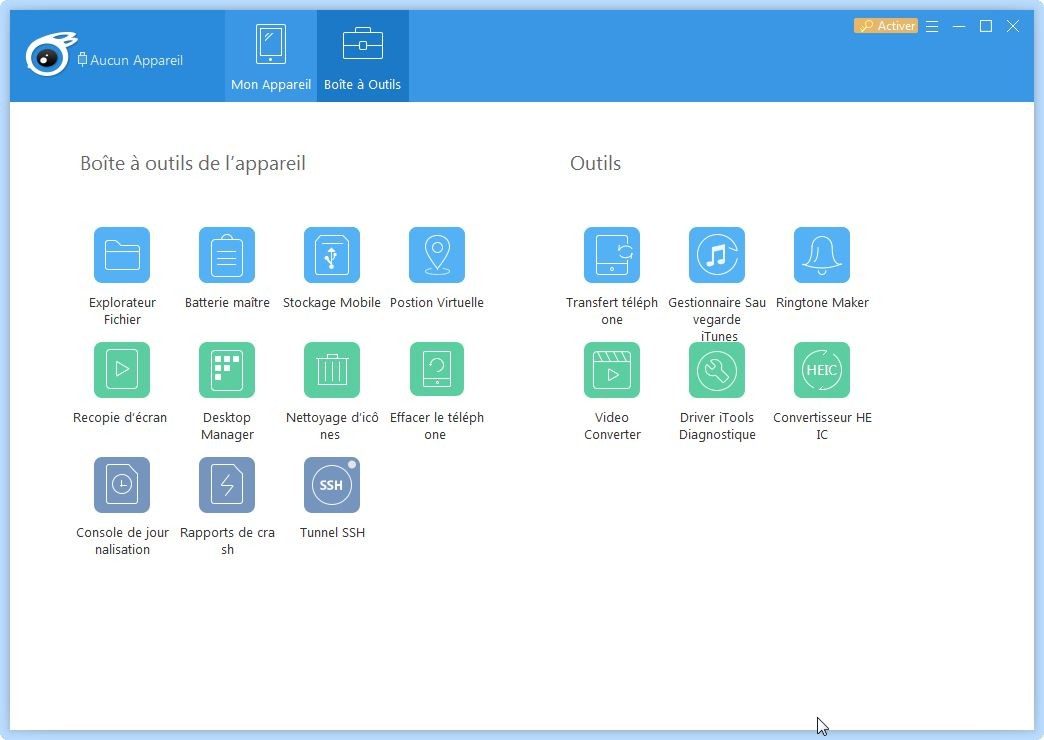
This flexibility unlocks features that feel like they should be native to iOS. You can take screenshots directly from your computer. You don’t have to fumble with buttons on the phone. You manage contacts and messages with ease. You even have access to an advanced backup manager.
The cleanup tools are particularly useful. You can clear out useless files to free up space. You can create custom ringtones without jumping through hoops. It covers daily needs and professional requirements alike.
Installation and Compatibility Details
You need a Windows PC or a Mac. That is it.
iTools supports a wide range of operating systems. Windows 7, 8, 8.1, 10, and 11 are all fair game. macOS is supported as well. This broad compatibility means you probably already have the hardware to run it.
The installation process is designed to be frictionless. You download the file. On Windows, it is an executable. On Mac, it is a DMG archive. There are no complex prerequisites. There are no technical hurdles.
This leads to a unique installation model. iTools runs autonomously. It doesn’t necessarily need a full, invasive installation on your hard drive. This portability is a huge plus. If you work across multiple machines, or if you switch laptops frequently, you don’t have to reinstall everything from scratch. You just grab the tool and go.
What iTools Doesn’t Do
It is important to know the limits. This software is not a universal key.
It does not work on Linux. If you are a Linux purist, you will have to look elsewhere. It does not work on Android. You cannot use it to manage your Samsung or Pixel. And you cannot install it directly on an iPhone or iPad. The software lives on the computer, acting as the bridge to the mobile device.
Security and Download Sources
Because it is a powerful tool, security matters. The software grants significant access to your device’s data. You should only download it from trusted sources.
The official site is the safest bet. Reputable tech platforms like Futura also offer the latest versions. Avoid obscure third-party mirrors. Unofficial sources can introduce unwanted software or malware. The risk isn’t worth the convenience of downloading from a random blog.
Getting Started with iTools
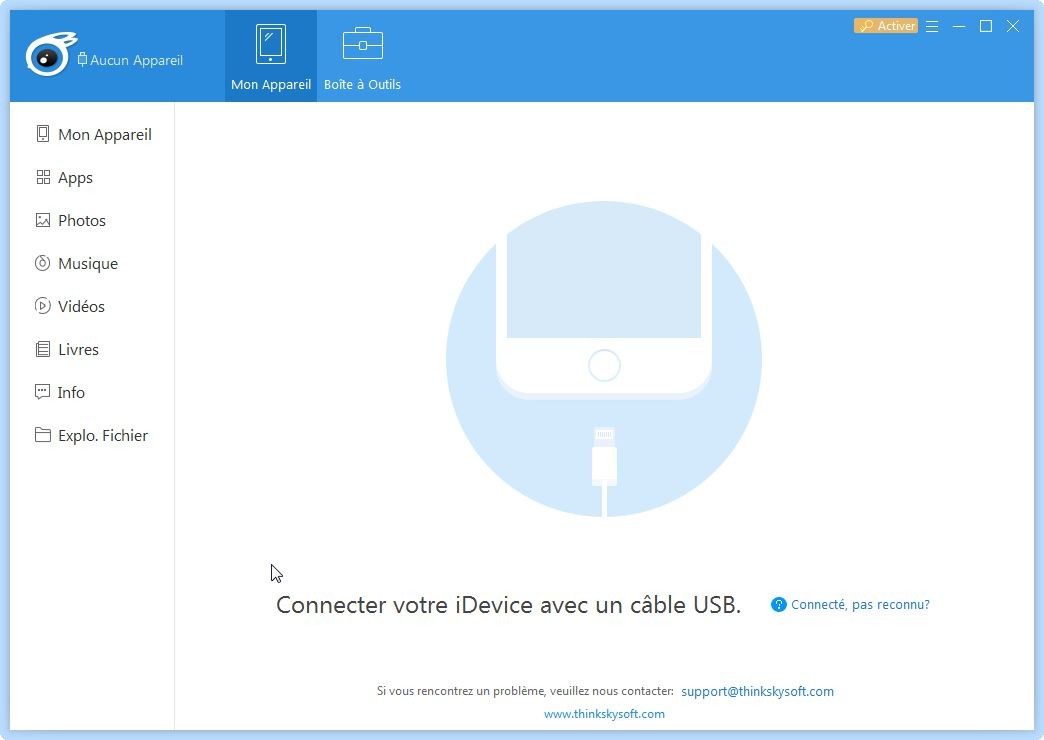
Once you have the file and you have installed (or extracted) it, the connection is straightforward. Connect your iOS device. The software should recognize it.
From there, the management begins. You can sync multimedia content. You can back up data. You can transfer photos, videos, music, and documents. The interface handles these tasks without requiring you to understand the underlying protocols.
This is about control. iTunes often feels like you are at the mercy of Apple’s updates and restrictions. iTools puts the keys back in your hands. You decide what stays. You decide what goes. You decide how your data is organized.
For users tired of the iTunes grind, this isn’t just an alternative. It is a relief. The ability to manage ringtones, clean up storage, and backup efficiently makes the daily interaction with your Apple ecosystem much less painful. It is smaller. It is faster. It just works.
And that is the point. Technology should simplify life, not complicate it. iTools aims to do exactly that.
Most people hate iTunes. You install it, it crashes, your phone disconnects mid-sync, and you’re left staring at a spinning wheel of doom. This is where iTools steps in. It doesn’t try to be a Swiss Army knife for every single Apple ecosystem need. It just wants to move your data. Fast.
While iTunes forces you into a rigid, centralized structure, iTools offers a clean interface. No bloat. No redundant menus. You see your files. You drag them. They go where you tell them to. For anyone tired of fighting Apple’s official tool, this direct approach is a breath of fresh air.
But does it hold up against other third-party managers? And what does it actually cost?
How iTools Compares to 3uTools and AnyTrans
You’re not limited to just iTools. The market is crowded with competitors like 3uTools, AnyTrans, and Syncios. Each has its own flavor.
3uTools is a beast. It’s packed with features you didn’t know you needed, like jailbreak detection and advanced diagnostics. AnyTrans focuses heavily on transferring data between devices. Syncios tries to be an all-in-one suite.
iTools takes a different route. It prioritizes speed and simplicity. It strips away the noise.
If you want to save time, iTools’ streamlined workflow beats the clutter of competitors.
You get an advanced media manager. A solid backup and restore module. Tools for cleaning up junk files. That’s it. Some competitors offer format conversion or online library access. iTools ignores those distractions. It focuses on what you do every day: backing up photos, moving contacts, and freeing up space.
The result? A tool that feels lighter on your system and faster in execution. If your main goal is efficient file management without learning a complex new interface, this trade-off makes sense.
Managing Contacts and Data Privacy
iTunes backs up everything. Photos. Messages. Settings. Apps. It’s a full dump.
iTools lets you pick and choose. This matters for two reasons: privacy and control.
You can organize contacts, message histories, and call logs directly. You aren’t stuck with a monolithic backup file that Apple controls exclusively. You have local backups. Local means no cloud interference unless you want it.
For professionals, this is huge. Sensitive data stays on your machine. No iCloud sync delays. No server-side processing. Just direct control. If you lose your phone, you restore exactly what you saved, not a messy catch-all of system logs.
iTools Pricing and License Models
Here is the good news: the core features are free.
You can download iTools and start moving photos, editing contacts, and creating backups without paying a cent. The free version handles the basics of iOS management. It’s enough for most casual users.
But you’ll hit limits eventually.
To unlock premium features, you need a paid license. This isn’t a one-time fee for everyone. It varies.
- License Types: Monthly, annual, or lifetime.
- Device Limits: The number of iOS devices you can manage at once.
- Advanced Features: Unrestricted file transfers, multi-device management, and removing certain access restrictions.
Is there a student discount? Not officially. Apple doesn’t do much for students here. But watch for promotions. Occasional sales pop up, sometimes targeting academic environments or specific holidays. If you’re on a budget, wait for a deal. Don’t rush the purchase.
Versions, Updates, and Compatibility
Software moves fast. iOS updates change how devices communicate. Old versions of iTools break.
Always check for the latest version. The most recent build ensures compatibility with new iPhone models and the latest iOS iterations. It also patches security holes.
Why keep old versions around? Sometimes, your hardware is older. Or you’re stuck on an older iOS version for a specific app reason. In those cases, an older iTools release might be the only thing that plays nice.
However, for 99% of users, the current version is the way to go. It supports the widest range of devices and offers the best performance.
Where do you get it? Stick to official download platforms. Futura is a reliable source for software updates. Avoid sketchy torrent sites. You don’t need malware in your backup tools.
Learning Without a Degree
There is no iTools certification. No university course. No official curriculum.
You won’t find a “Master of iTools” degree. And you don’t need one.
The software is intuitive. But if you get stuck, help is everywhere.
- Tutorials: Step-by-step guides are plentiful online.
- Forums: Dedicated communities discuss quirks and workarounds.
- Social Media: Groups on Facebook and Reddit are active.
You can learn enough to manage your own devices in an afternoon. The learning curve is shallow. You install it. You see your phone. You click a button. It works.
For advanced questions, the community is your best resource. They’ve likely already solved the error code you’re seeing. You aren’t alone in this. You just have to look in the right places.
The tool works. The price is fair. The learning curve is nonexistent. What’s left is your decision on whether to trust Apple’s clunky default or embrace a simpler alternative.
ThinkSkysoft didn’t build iTools for the cloud. They built it for the drawer. The one with the tangled charging cables and the ancient iPhone you keep just in case. This tool exists for one reason: to move files between your computer and your Apple device without Apple’s own syncing rules getting in the way.
It’s a local manager. That means your data stays on your hard drive, not some server in Cupertino. For people who care about privacy, that’s not a feature. It’s the whole point.
The hardware reality check
You can’t install this on your phone. It’s desktop software only. Windows or macOS. If you’re on Linux, you’re out of luck unless you’re running a VM, which is probably overkill for just moving photos.
The OS support is broad. Windows 7 through 11. macOS as well. It handles both 32 and 64-bit architectures depending on the specific version you grab. Most modern machines don’t even need to think about this anymore, but it’s good to know the legacy support is there.
The Apple driver dependency
Here is the catch. iTools isn’t a standalone magic box. It leans heavily on Apple’s own infrastructure. Specifically, the Apple Mobile Device Support drivers. If you have iTunes installed, you likely already have them. If you don’t, iTools will need them to even see your device.
No drivers? No connection. It’s that simple.
This reliance ensures stable detection. Your iPhone won’t just appear because iTools wants it to. It needs the underlying OS handshake that Apple provides. Once that handshake happens, the software can dig into the file system.
Offline first, online optional
The interface is graphical. It uses a tree structure for navigation. Drag and drop works as expected. But the real power is in the offline mode.
You don’t need an internet connection to transfer media, manage apps, create ringtones, or take screenshots. All of these operations happen locally. This speeds things up. It also keeps your data private. If you’re transferring sensitive documents or backing up chats, you don’t want that traffic going through a cloud relay.
Internet is only needed for two things:
1. Checking for updates.
2. Accessing any online services linked to the Pro version.
Who is this for?
If you are a casual user who just syncs music, you probably don’t need this. But if you want to sideload an app that isn’t in the App Store, or extract a video from your camera roll without it going through iCloud, iTools fills that gap.
It’s a utilitarian tool. The interface is English-heavy, though multilingual options exist. The free version covers the basics. The Pro license unlocks more advanced management features, but for simple file transfers, you don’t need to pay.
The final hurdle
Before you download, check your drivers. Make sure you have the Apple components. Verify you have enough disk space for local backups. And remember, this is a computer-based workflow. You can’t run this on the iPad itself.
The specs are stable. The compatibility is wide. But the experience is entirely dependent on that USB connection holding steady.