



ChatGPT has become the go-to tool for everything from debugging Python scripts to translating movie quotes into Shakespearean sonnets. But its most underrated superpower is actually far more practical: it writes formulas for Microsoft Excel and Google Sheets. You can stop staring at a blank cell and start building complex calculations with a few prompts.
So, how exactly does ChatGPT Excel formula generation work? It’s not magic. It’s just language processing applied to spreadsheet logic. By treating the AI as a co-pilot, you can turn a messy data problem into a clean, working spreadsheet in minutes.
What Is ChatGPT, Anyway?
At its core, ChatGPT is an AI language model trained on massive amounts of text data. It doesn’t “know” Excel in the way a human accountant does. It has seen enough examples of spreadsheet logic to recognize patterns. When you ask it to create a budget, it predicts the next likely sequence of characters that makes sense as a formula.
It responds in natural language. It can explain why a formula works. It can hold a conversation about your data structure. This makes it easier to debug than traditional support forums, where you’re often guessing at the right function to use.
How to Create Formulas Step-by-Step
Excel charts and graphs are powerful, but they’re useless if your underlying data isn’t structured correctly. That’s where AI steps in. The key is to start simple. Don’t ask for a multi-layered pivot table right away. Build it up.
If the output gets confusing, ask ChatGPT to break it down. Or rephrase your query. The goal is to iterate until the formula does exactly what you need.
Step 1: Ask for a Template
You don’t need to know the syntax for VLOOKUP or SUMIFS if you start with the structure. Let’s say you want a household budget. You’re stuck on where to begin.
Ask ChatGPT to generate a sample table. Be specific.
“Create a sample household budget spreadsheet with columns for Date, Category, Description, and Amount.”
ChatGPT will output a markdown table. It’s not a file you can download, but it’s a blueprint. You can copy this structure directly into your sheet.
| Date | Category | Description | Amount |
|---|---|---|---|
| 2023-10-01 | Groceries | Weekly Shop | -150.00 |
| 2023-10-03 | Utilities | Electric Bill | -95.50 |
Now you have the layout. The next step is asking for the logic.
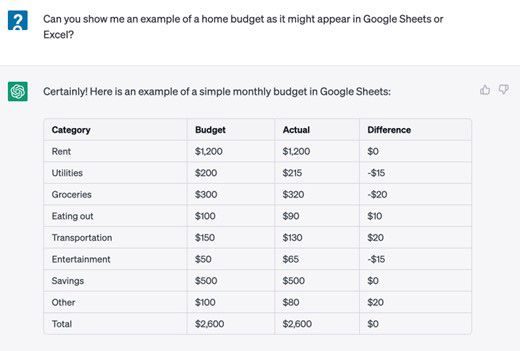

The skeleton of your spreadsheet is now in place. You have your categories, your budgeted amounts, and your actual spend columns. But right now, the numbers are static. They don’t talk to each other. The “Total” row is empty. The “Difference” column is blank.
This is where the manual effort usually stops for most people. They leave the sheet as a data dump.
You’re going to make it live.
Step 2. Ask ChatGPT to Write Excel Formulas
The table ChatGPT generated for you in the previous step is just text. It has no logic. It has no math. It’s a snapshot in time.
To turn this into a functional tool, you need to inject formulas. Specifically, you need the engine that calculates the variance between what you planned to spend and what you actually spent.
Here is the problem: Column headers change. Cell references shift. If you try to guess the formula or hunt through Excel’s formula bar help files, you waste time.
Ask ChatGPT to write the specific syntax for your structure.
Be precise. Don’t just say “calculate the difference.” Tell it exactly where your data lives.
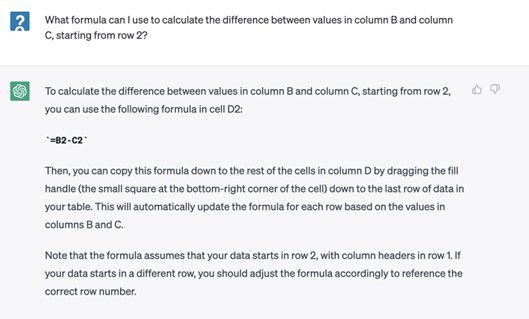
“I have a ‘Budget’ column in cell B2 and an ‘Actual’ column in cell C2. Write the Excel formula to subtract Actual from Budget in cell D2.”
ChatGPT will likely return something like =B2-C2.
Simple? Yes. But it’s also where errors creep in if you don’t verify the range.
Copying the Formula Down
One formula isn’t enough. You have dozens of line items. You need that subtraction logic applied to every single row without retyping it.
Once you have the formula from ChatGPT:
- Paste it into the first cell of your Difference column.
- Click the bottom-right corner of that cell (the fill handle).
- Drag it down to cover all your expense rows.
Excel will adjust the relative references automatically. B2-C2 becomes B3-C3, then B4-C4.
Calculating the Totals
The next gap in your spreadsheet is the sum. You need to know your total budgeted amount and your total actual spend.
Go back to ChatGPT.
“Write the SUM formula for the range B2:B50 in Excel.”
It will give you =SUM(B2:B50).
Drag that into your Total row. Do the same for your Actual spend column.
Now you have:
– Total Budget
– Total Actual
– Total Variance (Total Budget minus Total Actual)
You aren’t just tracking numbers anymore. You’re seeing the gap.
Why This Matters
Static tables lie. They show you history. Dynamic formulas show you reality.
When you update next month’s actual spend, the variance updates instantly. You don’t have to recalculate. The spreadsheet does the heavy lifting.
This is the difference between a ledger and a dashboard.
Troubleshooting Common Formula Errors
Sometimes ChatGPT gives you the syntax for Google Sheets instead of Excel. Or it uses a comma instead of a semicolon, depending on your regional settings.

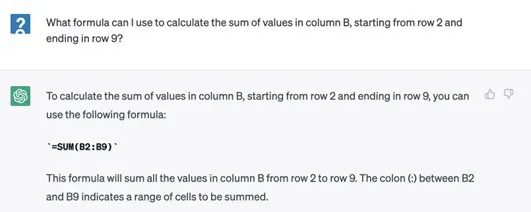

Getting the math right is only half the battle. You need to know exactly what those numbers mean. That’s where the “Sum” function comes in, and surprisingly, you don’t have to memorize the syntax. ChatGPT generates this for you.
Copy the formula it gives you. Paste it into cell B10, right beneath your category budgets. This calculates the total for that entire column. Repeat the process for columns C and D. Now you have a basic, functional spreadsheet. It works. But it’s dry.
How to Use Conditional Formatting with AI Help
Why stop at intricate Excel formulas? Raw numbers are boring. You want to see the problems before you even notice them. Let’s say you want to highlight categories where your actual spending blew past the budget in red. Conversely, mark the ones where you stayed under budget in green.
You could spend hours searching forums. Or you could ask ChatGPT to show you how to do that.
“How do I use conditional formatting in Excel to turn cells red if they exceed a value and green if they are below it?”
Paste that exact query. The AI will walk you through the steps. It won’t just give you the answer; it will tell you where to click. Data tab. Conditional formatting. New rule. Use a formula.
This is the difference between struggling alone and working with a tutor who never sleeps. You’re not just building a budget. You’re building a system that screams at you when you mess up.
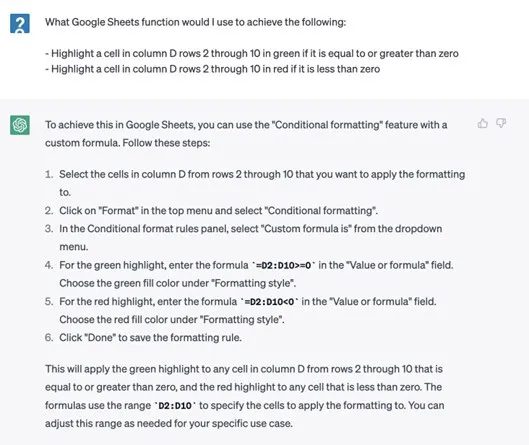

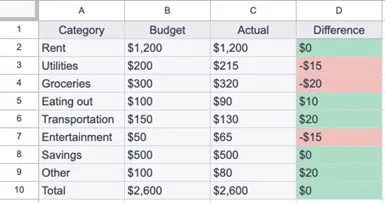

Your spreadsheet should now match the layout shown in the source image. The structure is clean. The data is aligned. Now comes the heavy lifting.
Getting Complex with Formulas
You don’t have to stop at basic sums. You can push ChatGPT to generate highly specific, complicated formulas.
Think about it. How often do you stare at a blank cell, knowing you need a function but not knowing the exact syntax? VLOOKUP trips up everyone eventually. INDEX-MATCH feels like alien code. XLOOKUP is powerful but finicky.
Instead of Googling error codes, just ask the AI.
“Write a formula that checks if cell A2 is in the list B2:B100. If yes, return the value from column C. If no, return ‘Not Found’.”
ChatGPT will spit out the code. It might need a tweak. That’s fine. The AI can guide you through clarifying questions. Ask enough times, and you’ll land on the exact logic you need. There is no request it refuses.
Adding Smart Budget Features
Once the core math is working, you can ask for enhancements. Don’t just settle for a list of numbers.
Ask ChatGPT which additional features would make this budget actually useful. Maybe you need conditional formatting rules? Perhaps you want a dynamic summary dashboard? Maybe you need a script to automate monthly imports?
The AI can suggest these additions. It knows what makes a spreadsheet robust. It knows what makes it tedious.
Pick one. Implement it. See how it changes your workflow.
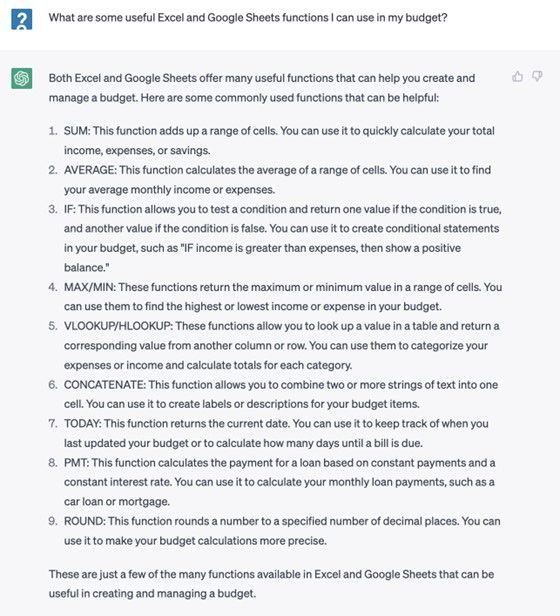

Mastering Excel with ChatGPT: A Practical Guide
If you are stuck on a specific formula, the fix is simple. Just ask ChatGPT to elaborate. The basic steps outlined here work for a wide range of spreadsheets. You can build everything from workout trackers to complex depreciation schedules.
Tips for Integrating ChatGPT to Create Spreadsheets
Trial and error will show you that using ChatGPT to guide your creation of spreadsheets for Microsoft Excel is intuitive. It is easy. If you are new to the AI tool, keep these best practices in mind.
-
Be precise. The more specific you can be in your query, the more likely it is that ChatGPT provides you with an accurate answer. When asking ChatGPT to generate intricate Excel formulas, mention the exact cells you want it to incorporate into the formula. For example, you might ask the chatbot to “Create an Excel formula to average the values in cells B2 through B9.”
-
Rephrase or edit your question. ChatGPT may misunderstand your question or provide an inaccurate result. If a formula generated by ChatGPT isn’t working as intended, go back to the chatbot and ask it to create the formula again. Try rephrasing your question. You can also edit a question you’ve already submitted by clicking the “edit” icon at the top right of your query in the ChatGPT interface.
-
Ask for an explanation. Another useful feature of your OpenAI account is its ability to explain how a given Excel or Google Sheets formula works. If you’ve copied a spreadsheet from somewhere online and you want to understand how certain values are generated, you can ask ChatGPT to explain it for you. Copy the formula from the cell and paste it into ChatGPT, asking the AI to walk you through how the formula works.
-
Troubleshoot formulas that don’t work. If you’ve written a formula on your own, and it doesn’t seem to be working, you can copy and paste the formula into ChatGPT and ask the chatbot to explain what’s wrong with it.
So, there you have it. Having an OpenAI API key isn’t only helpful for repetitive tasks and data analysis. Your ChatGPT login can also offer a gateway into an incredible resource for generating MS Excel spreadsheets and formulas!
This article was updated in conjunction with AI technology, then fact-checked and edited by a HowStuffWorks editor.
Now That’s Terrifying
Top AI scientists, researchers and executives. Sam Altman is among them. They have voiced deep concern for the future of humanity due to the rapid rise of AI. They signed a one-sentence open letter to the public. It aimed to put the risks in unmistakable terms.
“Mitigating the risk of extinction from AI should be a global priority alongside other societal-scale risks such as pandemics and nuclear war.”


